
Using Excel for Desk Booking: When a Spreadsheet Can Work

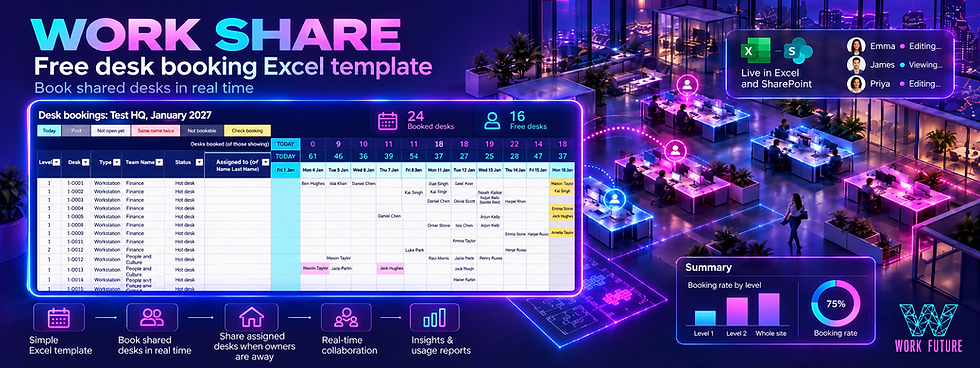
If you've found yourself asking whether you can run desk booking in Excel instead of paying for desk booking software, the answer is yes, as long as the spreadsheet is built for the job. We learned this by rebuilding a client's desk sharing spreadsheet that hadn't worked, and the result became Work Share, a free desk booking Excel template for workplaces of up to 500 desks.
This blog covers why desk booking spreadsheets tend to fail, what the rebuilt version does differently, the design decisions we made along the way, and when a spreadsheet stops being enough.
The client's problem
A recent client occupied two floors of a Perth CBD office building, with 210 workpoints across the two levels. Of these, 45 were used as hot desks, and many assigned desks were already shared informally through team WFH (work from home) rosters.
The client had tried a shared booking spreadsheet before, and it hadn't worked. It couldn't take bookings for future dates, and it didn't reset from one day to the next.
The client was entirely on Microsoft 365 and staff were used to Excel, so it made sense to stay with a spreadsheet.
Why desk booking spreadsheets fail
Looking at what the client had tried, and at the free hot desk booking templates available online, the same problems kept coming up.
They're built for a handful of desks. Two of the better known free templates are published by desk booking software companies, and their own pages say they suit teams of fewer than 10 people and fewer than 30 employees. One covers 30 desks over a rolling 14 days. The other covers 48 desks, with one tab per weekday holding a single date.
They can't look ahead. A sheet that only shows today, or one week at a time, has to be cleared and reset by someone, and staff can't book for the week after next.
Nothing checks the booking. Anyone can put their name against a date in the past, a date months away, or a desk that belongs to someone else.
Assigned desks are all or nothing. The client, like many offices, had assigned desks whose owners work from home part of the week. A template that only knows about hot desks leaves those desks empty on the days their owners are away.
People end up in their own copy. Once a file is emailed around or downloaded, there are several versions and none of them is the latest.
Macros don't travel. Spreadsheets that rely on VBA macros trigger security warnings, and macros don't run in Excel for the web or in Microsoft Teams.
There's no data at the end. Most of the free versions we looked at gave little more than a count for a single day, with nothing to show trends over weeks or months.
How we rebuilt it as a desk booking Excel template
We kept booking as simple as possible for staff, and put the rules and reporting behind the scenes. The file is saved to the organisation's SharePoint or OneDrive, and everyone books in the same file, in Excel for the web or the desktop app. With AutoSave on, bookings appear for everyone within seconds.
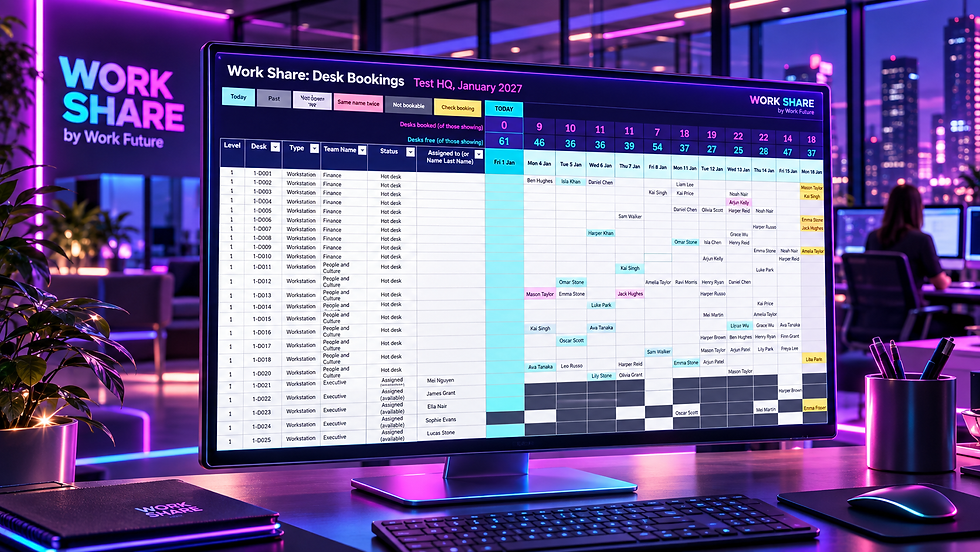
To book, staff open the month, find an empty white cell, and type their name where their desk meets their date. To cancel, they delete it. Behind that:
12 months ahead. Each month has its own tab, with a column for every weekday, today's date marked and past dates greyed out.
Rules Excel enforces. Excel checks each typed booking and refuses past dates, dates beyond the booking window, and desks that aren't bookable that day. The window is 14 days by default and can be set anywhere from 1 to 90.
A double booking warning. If one person's name appears against two desks on the same date, both cells turn red.
Four desk statuses. Hot desk, Assigned, Assigned (available) and TBC. An Assigned (available) desk can be booked by others on its owner's work from home days, or during up to three periods of leave.
Live counts. Booked and free desk counts sit above each date and follow the level filter, so staff can check one floor or the whole site.
Protected cells. Staff can only type in booking cells, and settings and the desk list are password protected.
No macros. It's a standard Excel file, so there are no macro warnings, and it can be added as a tab in a Teams channel.
It handles up to 500 desks across any number of floors. A site the size of the client's, with 210 workpoints, fits in one file with room to spare.
The decisions we made, and why
Enterprise desk booking software offers features such as check-in and automatic release of unused desks, which Excel was never designed to match, and Work Share isn't trying to compete with those platforms. We pushed Excel as far as it would sensibly go (without introducing macros) to give the client a simple booking tool that could be set up quickly and would do enough to get a result, which was all they were ready to implement at this stage. The decisions below follow from that.
No check-in. Check-in needs something that confirms a person is at their desk. QR codes on desks rely on people scanning them, and we've seen staff ignore them. Access card integration is hard to rely on when an organisation leases space in buildings that each run their own access system. Anything more sophisticated such as Wi-Fi pings or scannable hardware pucks needs enterprise software, hardware or both, which the client wasn’t ready to invest in at this stage.
No automatic release, and nobody gets bumped. Without check-in, there's no reliable sign that someone hasn't turned up. We also didn't want staff claiming a desk because the person who booked it seemed to be running late, which leads to people bumping each other. In Work Share, a booking holds for the whole day unless the person who booked it deletes it.
Minimal setup. Desk booking systems can ask for a lot of setup, such as mapping every dock or port to a desk, and in our experience that's where many rollouts fall down. Work Share only needs a desk list (level, desk ID, type, team and status) and a floor plan image.
No staff list to maintain. There's no employee list to upload or keep up to date. Staff type their own names, and who can book is controlled by who the file is shared with in SharePoint.
It stays in Microsoft 365. The file runs in the organisation's own SharePoint or OneDrive, so the desk list and bookings never leave its Microsoft 365 environment. There's no third party system for IT or security to assess, and Work Future doesn't host the file or see what's entered in it.
Using booking data to work out how many desks you need
Enterprise desk booking platforms are useful but can be expensive. Before committing, many organisations want to know whether staff will actually book a desk, how far ahead they book, and how many desks they need on their busiest days. A spreadsheet pilot for a team, a floor or a whole site answers those questions for little more than the cost of setting it up.
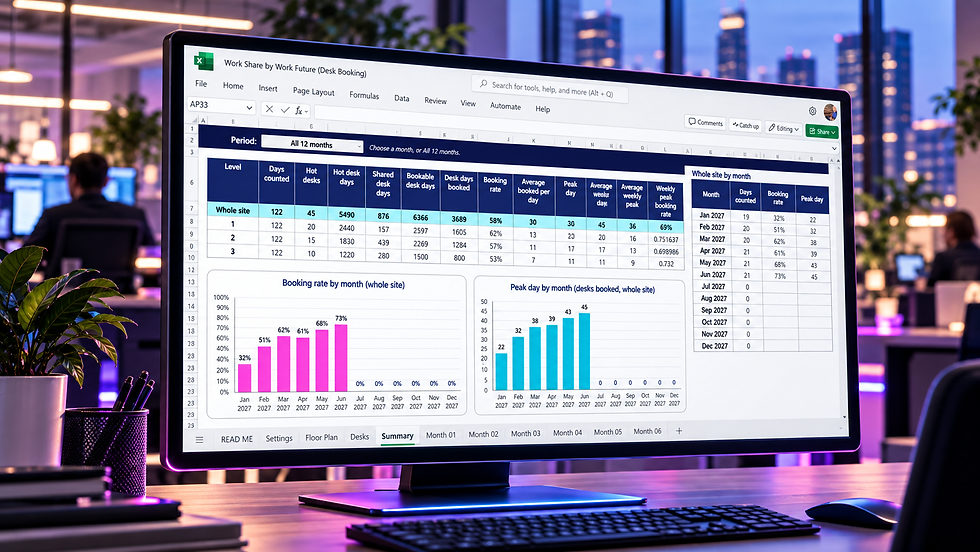
Work Share's Summary tab turns the bookings into figures for each level and the whole site, for any month or the full year:
Booking rate: desk days booked as a share of bookable desk days (a percentage showing what was booked vs what could have been booked).
Peak day: the most desks booked on a single day.
Average weekly peak: the busiest day of each week, averaged across the period. This smooths out one-off peak days, such as an all staff event.
Weekly peak booking rate: the average weekly peak as a share of the bookable desks (for example, if 10 desks are bookable and the busiest day of each week averages 8 bookings, the weekly peak booking rate is 80%).
Two charts show the booking rate and peak day for each month. The figures count weekdays up to today on which at least one desk was booked, so public holidays and office closures are left out. Assigned desks are left out too, because their use isn't recorded.
These are bookings, not attendance. They show demand for desks, not who actually came in, and they're a starting point for the question of how many desks you need. Our post on whether a space calculator could help covers the next step, and to measure how the office is really used, see Work Data and our Occupancy Analysis engine.
When a desk booking spreadsheet stops being enough
Work Share suits a single site of up to 500 desks, where staff are happy to book in a shared Excel file, and where you want to know who is sitting where and how busy the office gets.
It has limits. It records bookings, not attendance, so it can't detect no-shows or release unused desks. It relies on staff typing their own names. Excel checks typed entries, but it can't stop someone pasting over or deleting another person's booking, although colour warnings and Excel's change history make this visible.
If you need check-in, automatic release, calendar or access card integration, or reporting across several buildings, a desk booking platform is the better choice. A Work Share pilot will still help you specify one, because you'll know your booking rates and peaks before you talk to vendors. Work Future can assist with capturing your requirements and working with suitable vendors on your behalf.
Download Work Share
Work Share is free to download from the Work Share page. It's one Excel file, with a READ ME tab that walks through setup and day to day use. You'll need Microsoft 365 with Excel, and SharePoint or OneDrive to store and share the file.
If you'd like help deciding how many desks you need, which teams should share, preparing your desk list and floor plans, or rolling out desk sharing across your organisation, get in touch.
Frequently asked questions
Can you use Excel for desk booking?
Yes. Save the file to SharePoint or OneDrive and open it with AutoSave on, in Excel for the web or the Microsoft 365 desktop app, and bookings appear for everyone within seconds. Staff should always open the shared file, not a downloaded copy.
Is there a free desk booking template for Excel?
Yes. Work Share is a free desk booking Excel template for up to 500 desks across any number of floors, covering 12 months from a start month you choose. It includes booking rules, assigned desk sharing and a Summary tab.
How do you stop double bookings in a desk booking spreadsheet?
In Work Share, each desk has one cell per date, so a second person can only book it by typing over the first booking. Excel can't prevent that, but its change history shows who changed each cell. If one person's name appears against two desks on the same date, both cells turn red.
Do you need macros to build a desk booking system in Excel?
No. Work Share uses formulas, data validation and conditional formatting, with no macros. That's why it works in Excel for the web and in Microsoft Teams, where macros don't run.
Can staff book a desk in Microsoft Teams?
Yes. The file can be added as a tab in a Teams channel, so staff can book without leaving Teams.
Does a desk booking spreadsheet measure occupancy?
No. It records bookings, which show demand for desks, not who actually came in. To measure how a workplace is really used, you need occupancy data such as access card data.
This blog was written by Work Future Workplace Transformation Consultancy. We specialise in developing workplace tools and leading & delivering workplace strategy and transformation projects in Perth, WA. Contact us at hello@workfuture.com.au or +61 0435 824 305 to discuss your workplace project needs.


